
Applies To
Digital Picture Frame
What This Article Covers
This guide explains how to complete the customer task described in “Cozyla Frame Quick Setup Guide (Personal Use).”
Before You Start
- Make sure your Cozyla device is powered on.
- Make sure your device is connected to Wi-Fi when the task requires online access.
- Make sure you can access any third-party account, app, or service used in this guide.
- If your screen does not match this guide, update the relevant Cozyla app or device software where applicable.
Steps
Congratulations on your new Cozyla frame! Before you start, please make sure you have a Wi-Fi connection available. Then, simply follow the on-screen instructions for a quick and easy setup.
Setting Up Your Cozyla Frame
- Download and Sign In: Download the Cozyla app and create your Cozyla account.
- Frame Setup Page: Once you've signed in, you'll be on the Frame setup page.
Adding Your First Frame
- Select 'For myself': Choose this option on the setup frame page.
- Power on Your Frame: Follow the on-screen instructions to turn on your frame. Wait for the setup page to appear.
- Choose a Pairing Method:
-
Bluetooth Pairing:
- Tap "Turn on Bluetooth" in the app and grant Bluetooth (and location for Android) permissions.
- Make sure the number on the app matches the one on your frame's display and tap "Pair."
-
Code Pairing:
- Tap "Pair frame with code" at the bottom of the app screen.
- Enter the activation code shown in the app on your frame's screen (where it says "Enter (gift) code").
- Wi-Fi Setup: Follow the app's instructions to connect your frame to your Wi-Fi network. Your device supports 2.4 GHz and 5 GHz Wi-Fi bands.
- Complete Setup: Continue following the on-screen instructions to finish setting up your frame.
Adding Additional Frames
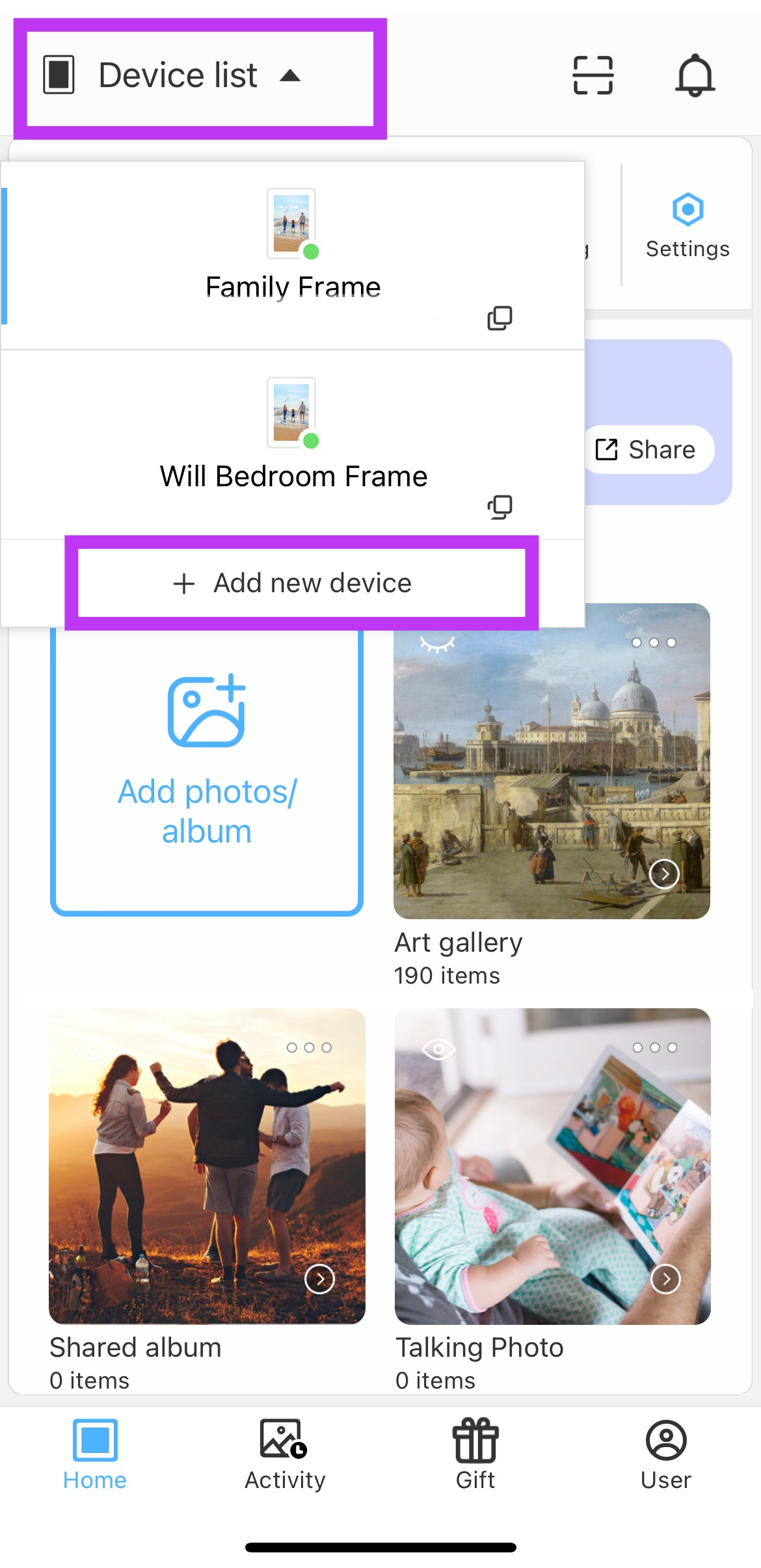
- Home Page: Go to the app's home page.
- Device List: Tap "Device list" in the top left corner of the screen.
- Add New Device: Tap "Add new device" and repeat steps 2-5 above.
Important Note:
- Location permission is required for Android devices to ensure proper Bluetooth functionality.
Troubleshooting
- Confirm your device is connected to Wi-Fi.
- Restart the app or device if the screen does not respond as expected.
- Update the relevant Cozyla app or device software if your screen does not match this guide.
- Confirm the app has permission to access photos or videos.
- Keep the app open until upload finishes when possible.
- Large files may take longer to appear on the frame.
Contact Cozyla Support
If the issue continues, contact Cozyla Support and include:
- Your Cozyla SN.
- The app or feature you were using.
- The email address or account type involved, if relevant.
- A brief description of what happened and what you expected to happen.
- A photo, screenshot, or short video of the issue if it is safe and relevant.